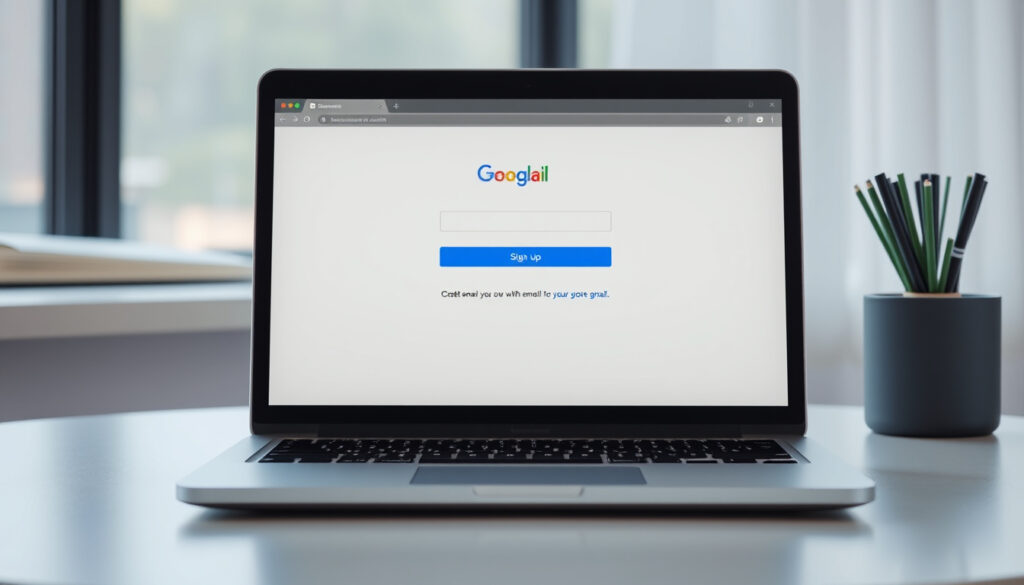
Gmail Sign Up: How to Create a New Account Step by Step
Creating a Gmail account means opening a Google Account, and the signup process lives at accounts.google.com. Google’s system handles brand-new email addresses and extra logins for existing users, but the two flows look similar at first glance. Below is the complete walkthrough, from opening your first Gmail inbox to juggling multiple accounts on the same Android phone.
Provider: Google · Cost: Free · Storage: 15 GB shared · Verification: Phone optional · Devices Supported: Desktop, Android, iOS
Quick snapshot
- Gmail requires a Google Account (Google Help)
- Free for personal use (Google Help)
- Phone verification is optional (Google Help)
- Exact limits on consecutive account creations with one phone number
- Whether Google enforces a hard cap on total accounts per device
- Step-by-step signup on desktop and Android
- Adding second and third accounts without logging out
- Phone number is reusable across multiple Gmail accounts (Vijay Sales)
- You can skip phone and verify via existing email instead (Google Help Forum)
The table below consolidates the core specs you need before starting the signup process.
| Field | Detail |
|---|---|
| Official Signup URL | support.google.com/mail/answer/56256 |
| Account Requirement | Google Account |
| Free Tier Storage | 15 GB |
| Max Accounts | No strict limit |
| Password Case Sensitivity (mobile) | First letter not case-sensitive (Google Help) |
| Account Switching Method | Tap profile picture (Google Help) |
| Multi-Device Same Account | Unlimited (BleepingComputer) |
| 2-Step Verification | Required during add if enabled (Google Help) |
“We recommend that you sign in to multiple accounts only on devices that you don’t share with other people.”
— Google Help, Official Account Policy Documentation
How do I create a new Gmail account?
Creating a Gmail account means creating a Google Account first — Gmail is Google’s email service, and the signup process lives at accounts.google.com. The steps are nearly identical whether you start on a desktop browser or an Android device.
Steps on computer
- Visit accounts.google.com/signup and click Create account.
- Enter your first and last name.
- Choose a Gmail address or let Google suggest one — you can also enter an existing third-party email to use instead.
- Create a strong password. Google requires a minimum of 8 characters.
- Enter your birthday and gender.
- Add an optional phone number for account recovery, then verify it with a code if prompted.
- Review and accept Google’s Terms of Service and Privacy Policy.
- Your new Gmail inbox is ready to use.
One detail worth noting: when you type your password on a mobile device, the first letter is not case-sensitive, according to official Google Help documentation. This only applies during initial account creation on mobile.
“When you enter your password on mobile, the first letter isn’t case sensitive.”
— Google Help, Official Documentation
Steps on Android
- Open Settings on your Android device.
- Navigate to Passwords and Accounts (or Accounts on some devices).
- Tap Add Account, then select Google.
- Tap Create account and follow the on-screen prompts: name, username, password, birthday, gender.
- Optional: add and verify a phone number for recovery options.
- Accept the terms when prompted.
Google’s official Android guide confirms that during account creation, you can select the account type: Personal use, Child, or Business. Each type affects storage allocation and management features.
Google recommends that you sign in to multiple accounts only on personal, non-shared devices, according to their official account policy documentation.
How do I sign up for another Gmail?
Adding a second Gmail account to your phone is faster than creating a new one, because you’ve already authenticated once. You don’t need to create a fresh Google Account — you just sign into one you already own.
Add second account
- Open the Gmail app.
- Tap your profile picture or initial in the top-right search bar.
- Tap Add another account.
- Select Google from the list.
- Enter the email and password for the additional Google Account.
- If 2-Step Verification is enabled, complete the second verification step when prompted.
- The new account appears alongside your existing one under your profile picture.
You can switch between accounts instantly by tapping your profile picture and selecting the account you want to use. Google allows an unlimited number of accounts on a single device, according to tutorial documentation.
Switch accounts in Gmail
Once multiple accounts are added, Gmail shows all of them listed under your profile icon. Tapping any listed account switches the inbox view to that account’s messages.
For users managing both personal and work Gmail addresses, switching takes about two taps — no sign-out required. The Gmail app keeps both inboxes separate, with distinct settings per account.
Can I create a second Gmail?
Yes. Google permits multiple separate Google Accounts, each with its own Gmail address. There’s no set maximum — you can create dozens of accounts if you need them, as long as each has a unique username.
Limits and tips
- Each Gmail address must be unique globally — no two accounts can share the same username.
- Google allows the same phone number to verify multiple accounts, per Vijay Sales, though Google may temporarily restrict rapid consecutive signups.
- If you hit a creation limit, wait a few hours or days before trying again with the same phone number.
- Consider using a recovery email address instead of (or in addition to) a phone number.
Manage multiple accounts
Accounts added via Gmail app or Settings have separate Inbox, Sent, and Draft folders. However, some default settings — like display language or notification preferences — may carry over from your primary account in certain situations, as noted in tutorial documentation.
The implication: secondary accounts inherit some system-level preferences from the primary, which can catch users off guard if they expect full isolation.
Can I have two email addresses with Gmail?
Beyond adding whole separate accounts, Gmail offers two lighter-weight options for managing multiple addresses without creating new logins.
Aliases with +
Gmail ignores periods and everything after a plus sign in usernames. This means you@example.com, y.o.u@example.com, and you+work@example.com all deliver to the same inbox. You can create hundreds of filtered addresses pointing to one account — useful for tracking which services share your email.
“Google allows multiple Gmail accounts to be verified with the same phone number.”
— Vijay Sales, Tech Blog
Add other accounts to app
- In Gmail app, tap profile picture > Add another account.
- Select Other (for IMAP/POP) instead of Google.
- Enter your non-Gmail address and password.
- Gmail sets up IMAP syncing automatically for most major email providers.
This method works for Outlook, Yahoo, iCloud, and other POP/IMAP providers. Your non-Gmail messages appear in a separate inbox tab within the Gmail app.
Adding external accounts via IMAP means Gmail accesses those messages on Google’s servers. Review each provider’s data-sharing terms before connecting work or sensitive personal accounts.
How to sign up for Gmail with phone number?
Phone verification is optional but strongly recommended — it dramatically improves your chances of recovering a forgotten password. Google’s official guide confirms that phone number addition is optional during signup, but the step is easy to skip without realizing its value.
Verification process
- During signup, when prompted for a phone number, enter your mobile number.
- Google sends a six-digit code via SMS.
- Enter the code on screen to confirm ownership.
- The number is stored as a recovery option in your account settings.
Skip phone if possible
If you’d rather not share your number, select Use your existing email instead. Google sends a verification link to that email address, which you click to confirm. This method works without a phone, according to Google Help Forum discussions.
You can also use a friend’s phone temporarily to receive the code, then remove the number from your account settings afterward.
Related reading: Rocket-Play Sign Up Guide
support.google.com, youtube.com, youtube.com, youtube.com, support.google.com
While following these official steps, many find the step-by-step Gmail sign-up tutorial equally helpful for desktop or mobile Gmail account creation.
Frequently asked questions
Is Gmail free to sign up?
Yes. Gmail is completely free for personal use. The only cost is sharing 15 GB of cloud storage between Gmail, Google Drive, and Google Photos across your Google Account.
Do I need a phone number for Gmail signup?
No. Phone verification is optional. You can skip it by choosing to verify via an existing email address instead, or by using a friend’s phone temporarily during the signup process.
How long does Gmail signup take?
The process typically takes five minutes or less on a desktop browser. Android signup through Settings runs about the same length, with the longest pause usually being the verification code delivery if you use phone verification.
What if I forget my Gmail password during signup?
Google requires you to set your password before completing signup, so you won’t need to recover it mid-process. After your account is created, use the Forgot password? link on the sign-in page — Google will send a reset link to your recovery email or SMS code to your verified phone number.
Can I use Gmail without a Google Account?
No. Gmail requires a Google Account to function. You cannot use Gmail with an email address from another provider unless you link that external account through Gmail’s IMAP setup, which still requires an existing Google Account to sign in to the app.
Is there an age limit for Gmail signup?
Yes. Google requires users to be at least 13 years old (or the applicable age in your country) to create a Google Account. For younger users, Google offers supervised accounts through Family Link with parental consent.
How to delete a new Gmail account?
Go to your Google Account settings at myaccount.google.com, select Data & privacy, scroll to Delete a service, and follow the prompts. Deleting Gmail removes your Google Account entirely, including Drive, Photos, and Calendar data. Make sure to back up anything you want to keep before proceeding.
More related posts
 Reilly Opelka: Height, Injury, Sister, and Comeback
 Viet to English – Best Free Apps and Tools
 Sam Smith: Identity, Health, Music, and Facts
 Danielle Campbell: Biography, Relationships & Career
 Shoes and Socks – Matching Rules for Every Outfit
 How to Find My TFN: ATO and myGov Steps
 ABC Kids Shows – 2024 Lineup, Schedule and Best Picks
 Robert Smith: Smudged Lipstick, Feuds, and Net Worth Explained